Judging
Judge agents can automatically review a single task result or compare multiple variants to help you identify the best solution. Judges analyze code quality, correctness, and completeness—providing objective feedback that saves you time reviewing variants.
What Are Judge Tasks?
A judge task is a special task that evaluates other tasks in a group. Unlike regular tasks that modify your code, judges:
- Run after primary tasks complete
- Have read-only access to primary task results
- Analyze code quality, correctness, and completeness
- Produce evaluation notes and scoring
- Do not modify your repositories
Judge tasks appear in the task group alongside other variants.
How Judges Evaluate
When a judge task runs, it:
- Reads all primary task results—patches, summaries, exit codes, logs
- Analyzes the code changes each agent made
- Reviews test results and error messages
- Evaluates each variant on multiple dimensions
- Generates a detailed report with scores and recommendations
Evaluation Dimensions
Judges score variants on:
- Correctness: Does the code solve the problem? Are edge cases handled? Do tests pass?
- Code quality: Is it readable, maintainable, and following good patterns?
- Completeness: Are all requirements addressed? Is anything missing?
- Performance: Is the implementation efficient? (when applicable)
Each dimension receives a score, and judges provide detailed notes explaining their reasoning.
Judges may use or add other dimensions based on the task context.
Automatic Judging
You can configure automatic reviews for future task submissions, including tasks you stage for later execution and tasks launched from objectives.
Configuring Auto-Judge
Open Auto-review tasks… in the task launcher's options menu. In Auto-review Settings:
- Select which agents should serve as reviewers. Select no agents to turn automatic reviews off.
- Set Automatically review to one of these minimums:
- 2 or more tasks with changes — the default, preserving comparison-only behavior for existing settings.
- 1 or more tasks with changes — includes single-task reviews and groups where only one variant produces eligible changes.
- Click Save. The preference is saved in your browser and copied into groups created for future submissions. It does not change existing groups.
Multiple reviewers provide independent evaluations, reducing bias and increasing confidence in the results.
When Auto-Judge Launches
Judge tasks launch automatically when:
- All primary tasks have finished (completed, failed, or interrupted).
- The selected minimum number of primary tasks completed successfully and made file changes. Failed tasks and completed tasks without changes do not count toward the minimum.
- None of the primary tasks has follow-up history; this automatic launch applies to their initial execution.
- At least one configured reviewer has not already been launched for the group.
With exactly one eligible result, the judge uses review mode. With two or more, it compares the eligible variants. Even when the minimum is one, reviewers wait for every primary task to finish.
Moving, regrouping, or reordering existing tasks does not itself trigger automatic reviews. For example, adding an existing result to a group before resubmitting variants does not consume the reviewers before the new variants finish.
If conditions aren't met, automatic judging is skipped—but you can launch judges manually.
Manual Judge Launch
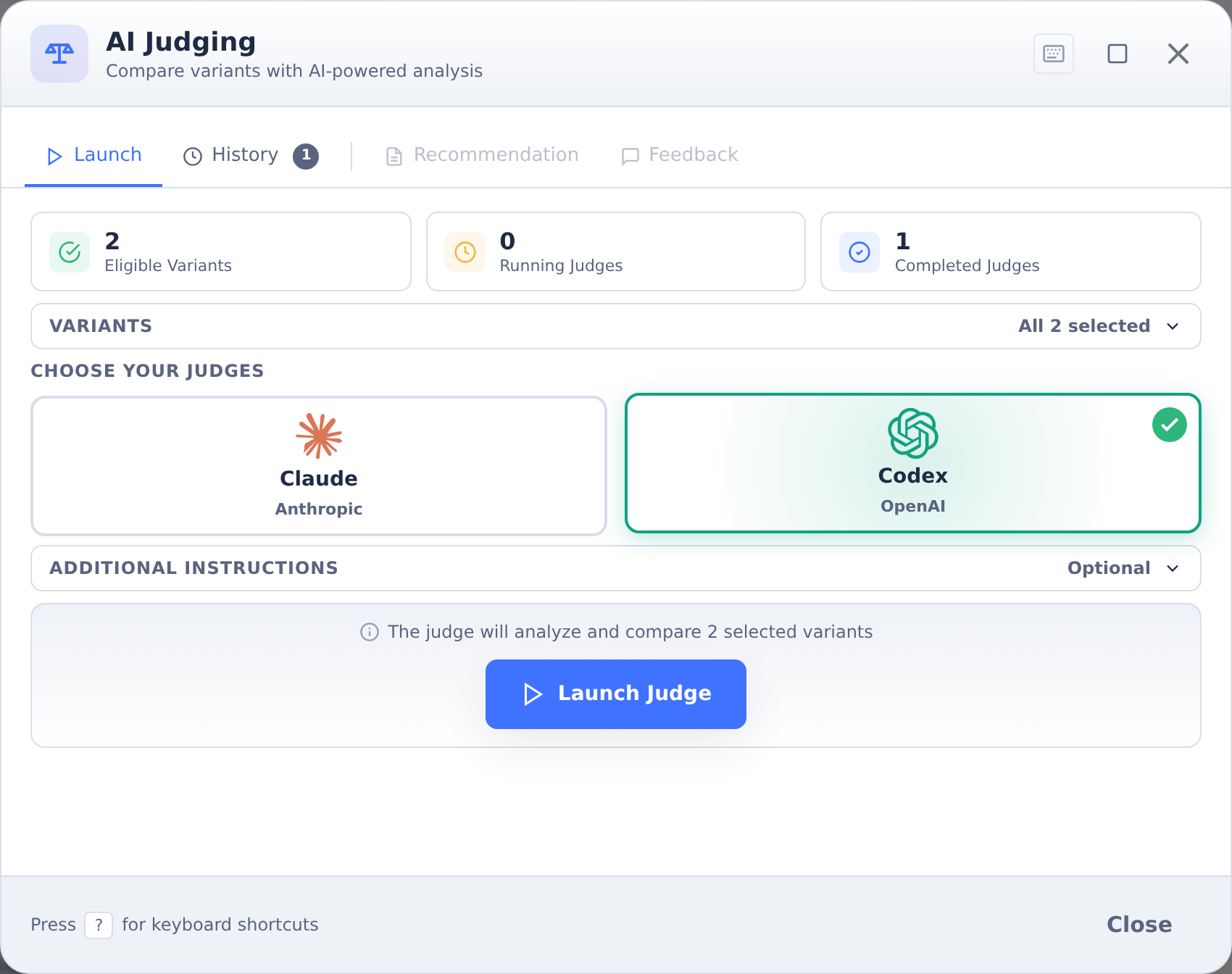
You can launch judge tasks at any time:
- Open the task group
- Click the Judge button
- Select which variants to review and which agents to use as judges
- Click Launch Judge (or Launch Review for one variant) to create and queue the judge tasks
This is useful when auto-judge conditions weren't met, or when you want additional evaluation after making changes.
Review Mode
Judging compares variants against each other, so it needs at least two. When you select a single variant instead, the judge switches to review mode and evaluates that one solution on its own merits.
The difference is what comes back. A comparison judge names a winner; a review judge returns a verdict:
- Pass: the solution is correct and acceptable
- Needs Improvement: functional, but has issues
- Fail: incorrect or fundamentally flawed
To launch one, open the Judge panel, select exactly one variant, and choose your judges. The launch button changes to Launch Review. Verdicts appear on the judgment cards in the History tab.
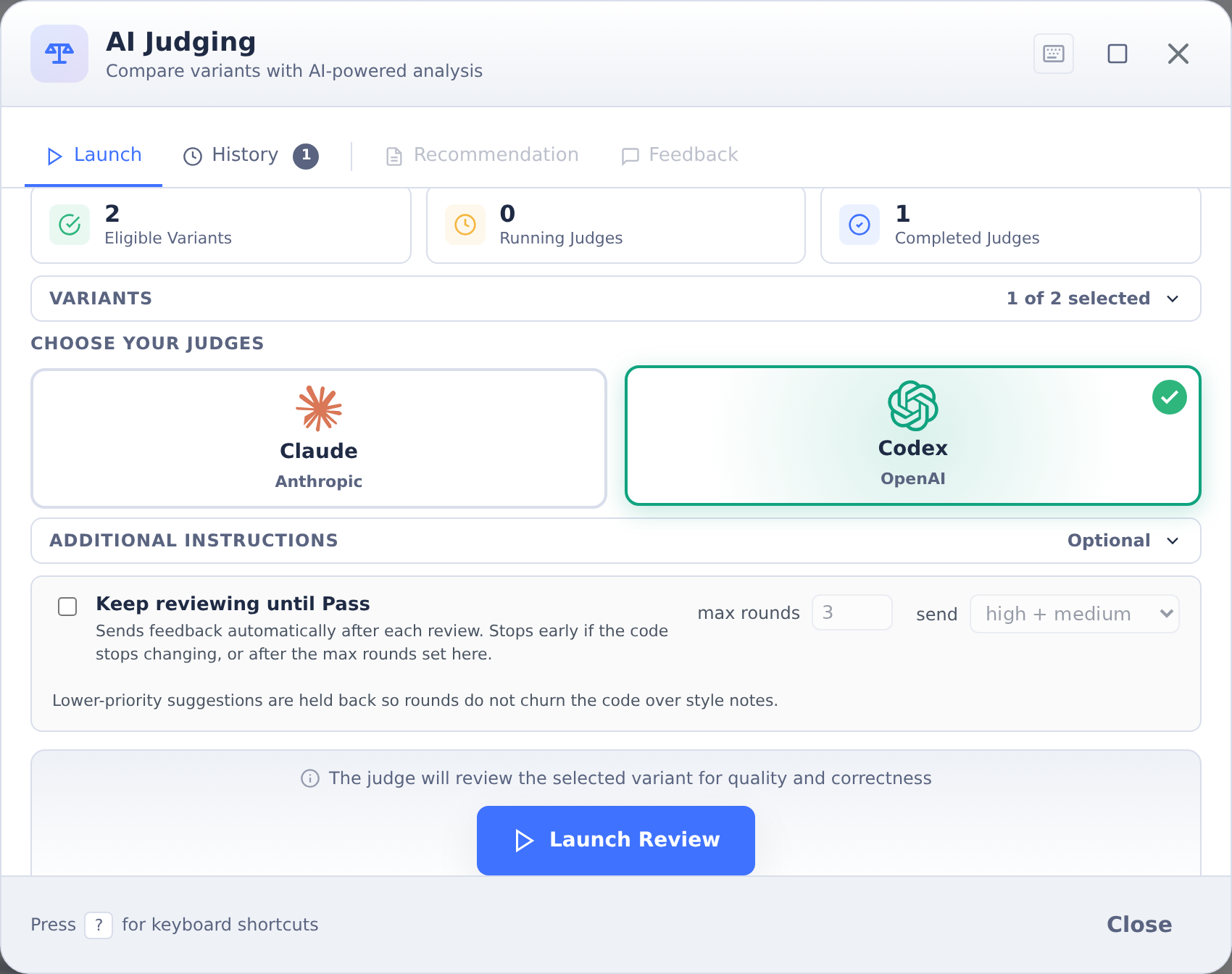
Reviews can also launch automatically: choose 1 or more tasks with changes in Auto-review Settings before submitting the task. If exactly one result meets the eligibility rules above, the automatic judge uses the same review mode and returns a verdict. The default minimum of two continues to produce comparisons.
A review judge still fills in improvement feedback, even when the verdict is Pass. Treat the verdict as the decision and the feedback as suggestions.
Judge Consensus
When multiple judges evaluate the same variants:
- Each judge scores independently
- Results can be compared side-by-side
- Consensus emerges when judges agree on the best variant
- Disagreements highlight areas worth closer review
If two out of three judges recommend the same variant, that's a strong signal. If judges disagree significantly, you may want to review their reasoning before deciding.
Using Judge Feedback
Judge feedback isn't just for picking a winner—it helps you improve the code.
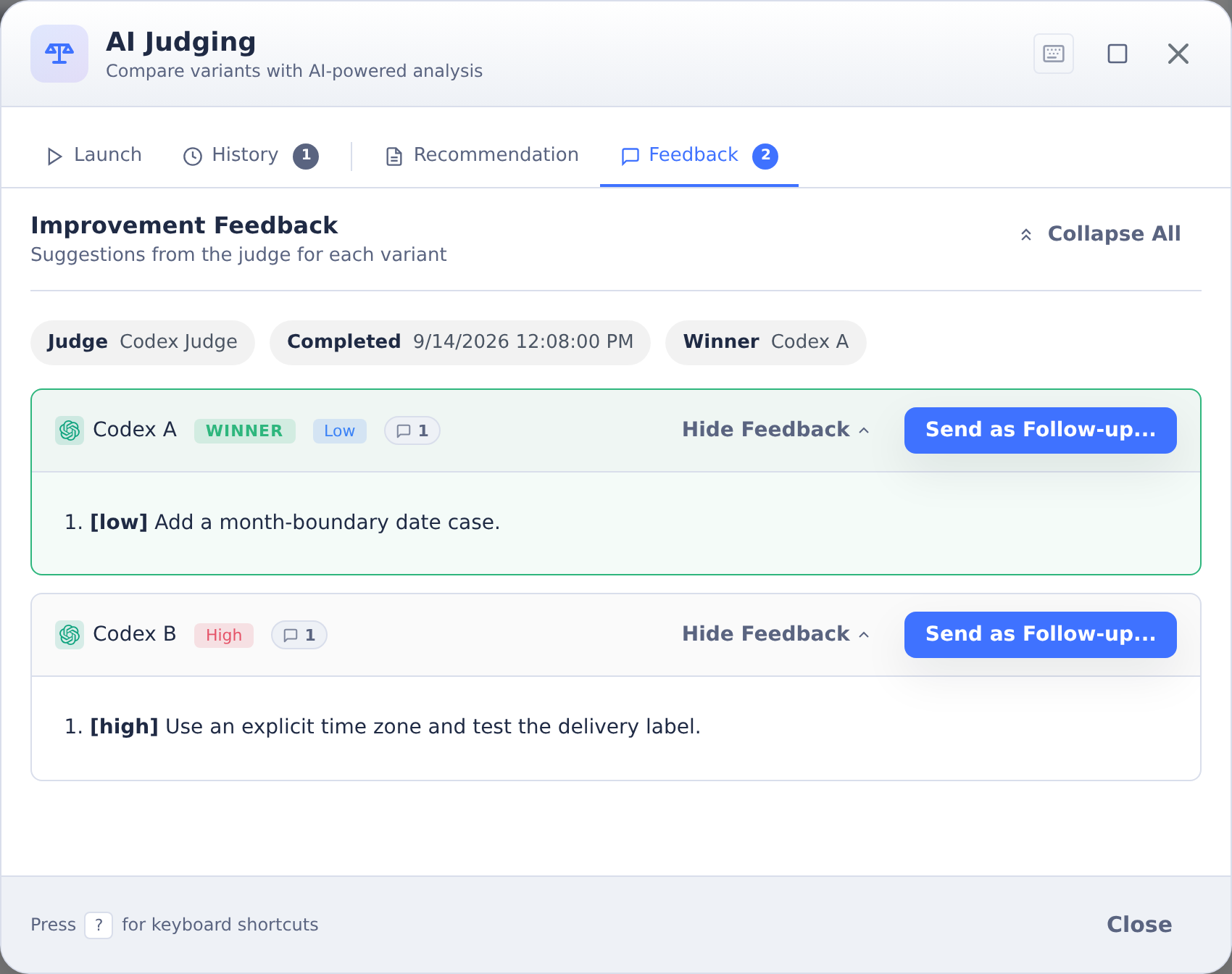
Select a completed judgment in History, then open Feedback. Expand a variant's feedback to review its suggestions. Use Send as Follow-up… to prepare instructions for that variant.
Common Issues Judges Identify
- Test failures: Some tests aren't passing
- Edge cases: Boundary conditions not handled
- Error handling: Missing validation or exception handling
- Code style: Inconsistent naming or formatting
- Incomplete implementation: Features not fully implemented
Feedback Loops
After reviewing judge feedback:
- Identify specific issues mentioned in the evaluation
- Send follow-up instructions to the winning variant addressing those issues
- The agent resumes and implements improvements
- Optionally re-run judges to verify the improvements
This creates a refinement cycle where judges catch issues that agents then fix. See Providing Feedback for how to send judge feedback as a follow-up.
Keep Reviewing Until Pass
In review mode, CoderFlow can run that cycle for you instead of you repeating it by hand.
Tick Keep reviewing until Pass in the Judge panel before launching, and set a round limit. After each review, the feedback is sent to the variant automatically, the variant addresses it, and the same judges re-evaluate. That is one round.
The loop stops as soon as any of these is true:
- The review passes. With several judges, every one of them has to pass.
- The rounds run out. You set the limit when you launch, up to ten.
- The variant stopped changing code. If a turn produces no changes, the agent has effectively declined the feedback, and another round would only repeat itself.
The History tab shows the current round while the loop runs, with a Stop button, and the reason it stopped once it finishes. Group completion notifications are held until then, so you are notified once at the end rather than once per round.
With more than one judge, a round waits for all of them, then merges their feedback into a single follow-up so the variant addresses everything in one turn. A judge that fails to produce a verdict does not stop the loop as long as another one did.
Each round is one agent turn plus one run per judge, so the round limit is also your cost ceiling. Three is a reasonable default.
The loop is offered in review mode only. Comparison judging returns a winner rather than a verdict, so there is no pass condition to stop on.
Judges Don't Approve
Important: Judge tasks provide feedback and recommendations only. They do not:
- Automatically approve changes
- Commit or push code
- Mark tasks as winners
You make the final decision on winner selection and approval. Judges inform your decision—they don't make it for you.